
What is a Datacenter & why add one
A Datacenter is the highest-level container Virtualizor uses to organise physical hardware. Everything else — floors, racks, and bare-metal servers — lives inside a datacenter. Before you can add any rack or register any bare-metal server, at least one datacenter must exist.
Adding a datacenter buys you four things:
- Geographic context - a country flag and address appear next to every server in the panel.
- Region-based plan filtering - the Server Region you attach to a datacenter decides which bare-metal plans are offered to end users for servers in this DC.
- Contact details - ops/NOC contact information surfaces at the top of the list so first-responders can reach the facility quickly.
- A parent for floors - without a datacenter you cannot map floors, racks or rack positions for any server.
Where to find it
Sidebar path in the Admin Panel:
From there you can use either the top-right Add Datacenter button or the sidebar entry Bare Metal › Add Datacenter.
The List Datacenters page
The list view is your overview. Each row is one datacenter, with quick links to edit/delete and live counts of how many child floors / racks / bare-metals belong to it.
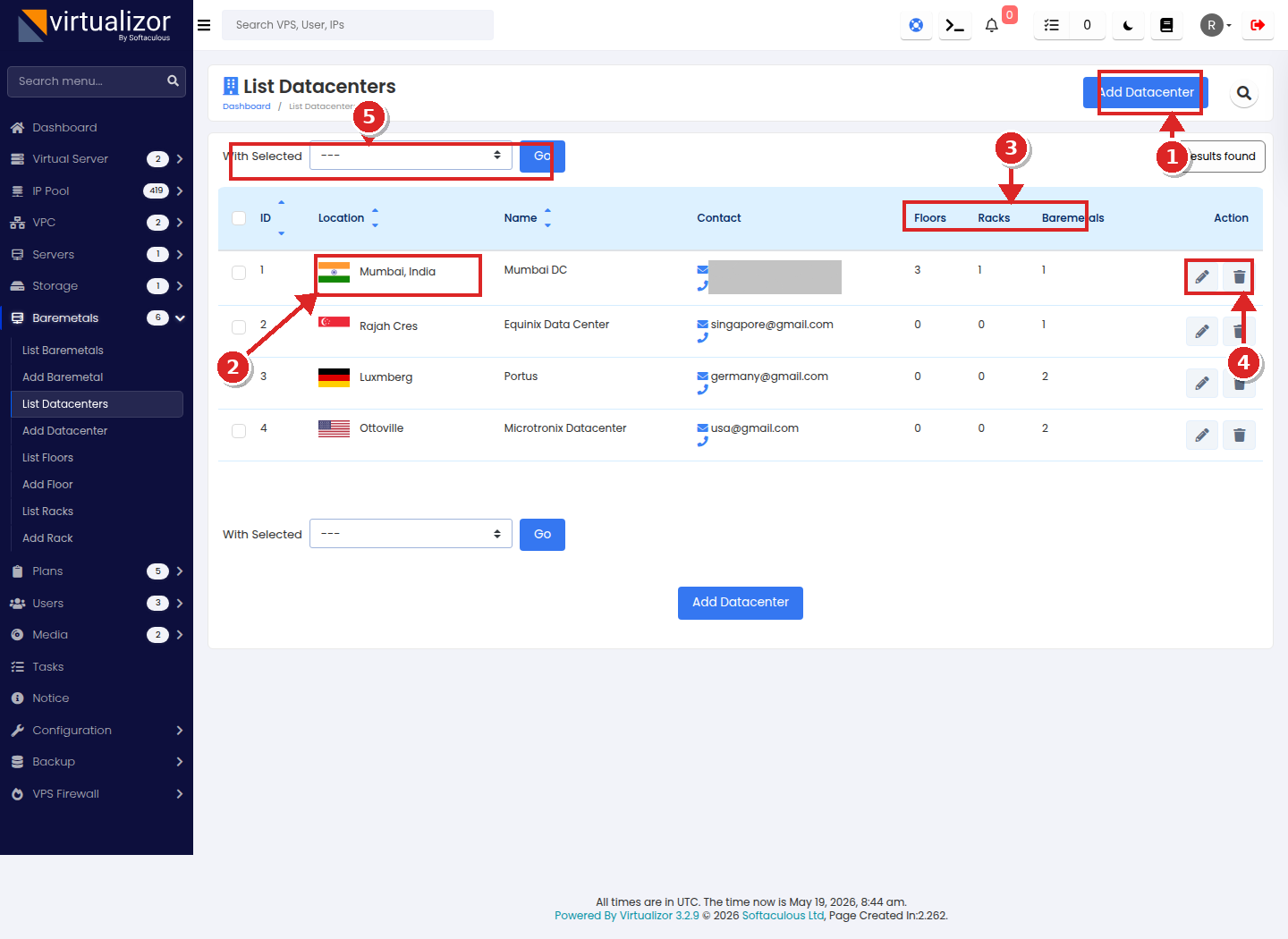
- Add Datacenter button — primary entry point for creating a new facility. The identical large button at the bottom of the list does the same thing.
- Location column — renders the country flag and city/short label. Hover the country to see the full street address as a tooltip.
- Floors / Racks / Baremetals counters — live counts of child records. A value of
0means nothing has been attached yet; deleting a DC with non-zero counters triggers a cascade warning (see §6). - Action icons — per-row pencil opens Edit, trash opens Delete (with cascade confirmation if needed).
- Bulk action bar — tick the row checkboxes on the left, choose an action from "With Selected", click Go. The only bulk action currently exposed is Delete.
Column reference
| Column | Description |
|---|---|
| ID |
Internal primary key. Used in deep links (?act=edit_datacenter&dcid=...).
|
| Location | Flag + short city label. Full address shown on hover. |
| Name | The display name you typed in Data Center Name. |
| Contact | Email and phone shown one above the other. |
| Floors | How many floors exist in this DC. |
| Racks | Sum across all floors. |
| Baremetals | Physical servers homed in this DC. |
| Action | Per-row edit / delete buttons. |
Add Datacenter - the form, field by field
Where: sidebar → or the Add Datacenter button on the list page.
Why: creating a datacenter is the first step before any floor, rack or bare-metal server can exist in Virtualizor. You will come back to this form whenever you onboard a new physical facility.
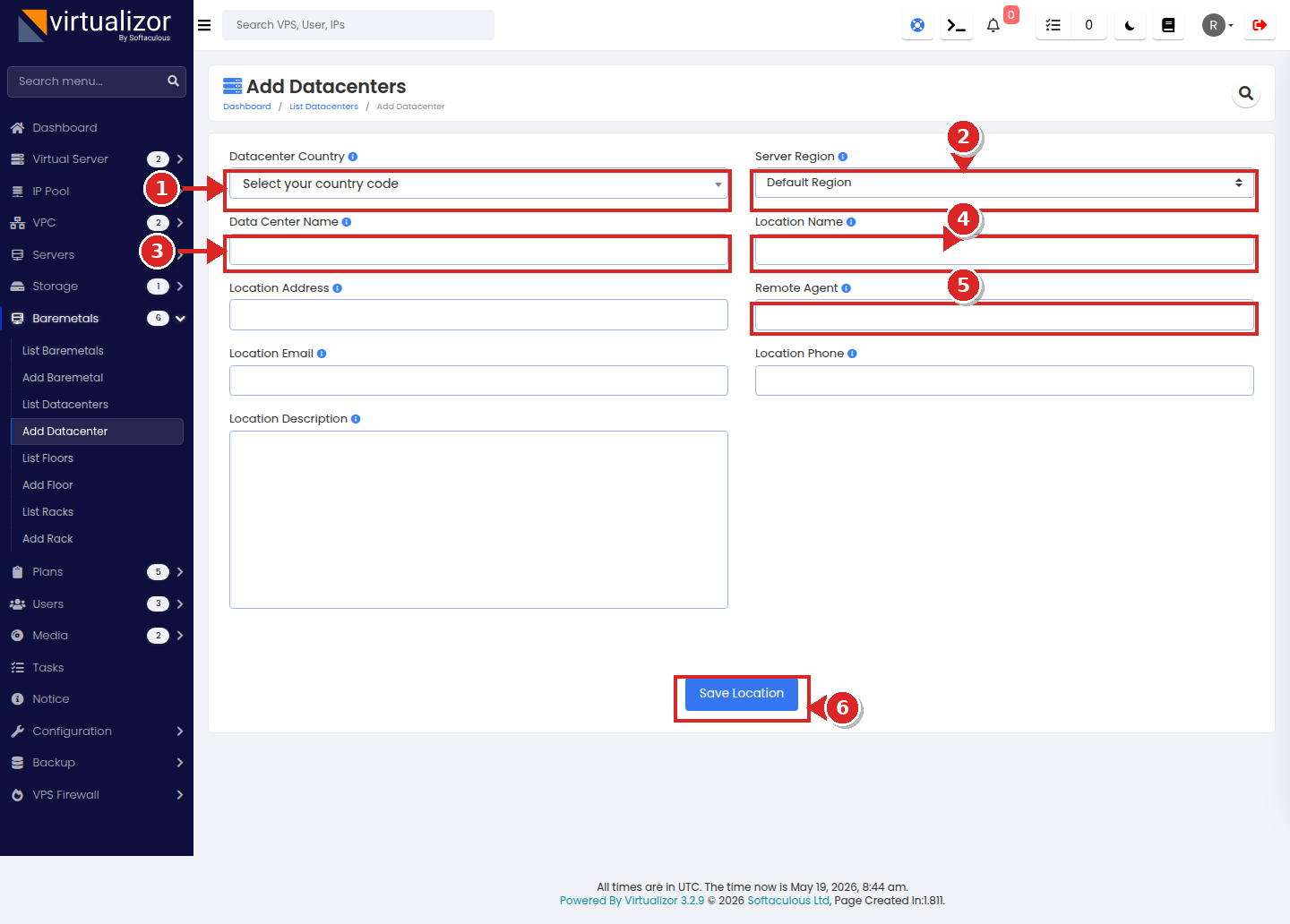
- Datacenter Country - searchable Select2 dropdown rendering a flag next to each country. Drives the flag shown on every list/manage page.
- Server Region - ties this datacenter to a Virtualizor server group (region). End users only see bare-metal plans whose pricing matches this region.
- Data Center Name - internal display name shown in the Name column.
- Location Name - short city / facility label shown in the Location column.
- Remote Agent - optional IPMI / out-of-band agent endpoint (used when the facility hosts a dedicated remote IPMI gateway).
- Save Location - commits the record. On success you are redirected back to the list page.
Complete field inventory
| UI Label | Required | Type | Purpose tips | |
|---|---|---|---|---|
| 1 | Datacenter Country | REQUIRED | Select (with flag) | Used for flag rendering across all Bare Metal pages. |
| 2 | Server Region | OPTIONAL | Select |
Defaults to Default Region (sgid=0).
Switch this to expose this DC to a specific region's bare-metal plans. Choose All Regions if
the plans for this DC should be discoverable everywhere. |
| 3 | Data Center Name | REQUIRED | Text | Display name, e.g. Mumbai DC, Equinix Singapore. |
| 4 | Location Name | REQUIRED | Text | City / short label, e.g. Mumbai, India. |
| 5 | Location Address | REQUIRED | Text | Full street address. Appears as a tooltip in the list. |
| 6 | Remote Agent | OPTIONAL on Add | Text | IPMI / out-of-band agent endpoint URL or hostname. Heads-up: Edit treats this as required — see §5. |
| 7 | Location Email | REQUIRED | Text | Primary NOC / ops email. |
| 8 | Location Phone | OPTIONAL on Add |
Text (digits, +,
-)
|
Country code prefix allowed, e.g. +91-7977983548.
Edit form treats it as required — see §5. |
| 9 | Location Description | OPTIONAL | Textarea | Free-form notes (cage / cabinet labels, access procedure, escalation tree, etc.). |
How to add a Datacenter — step by step
Edit Datacenter
Where: click the pencil icon on a row in the list. The URL becomes ?act=edit_datacenter&dcid=<dcid>.
Why: change any of the nine fields after the fact — typically address fixes, contact updates, or moving a DC into a different Server Region.
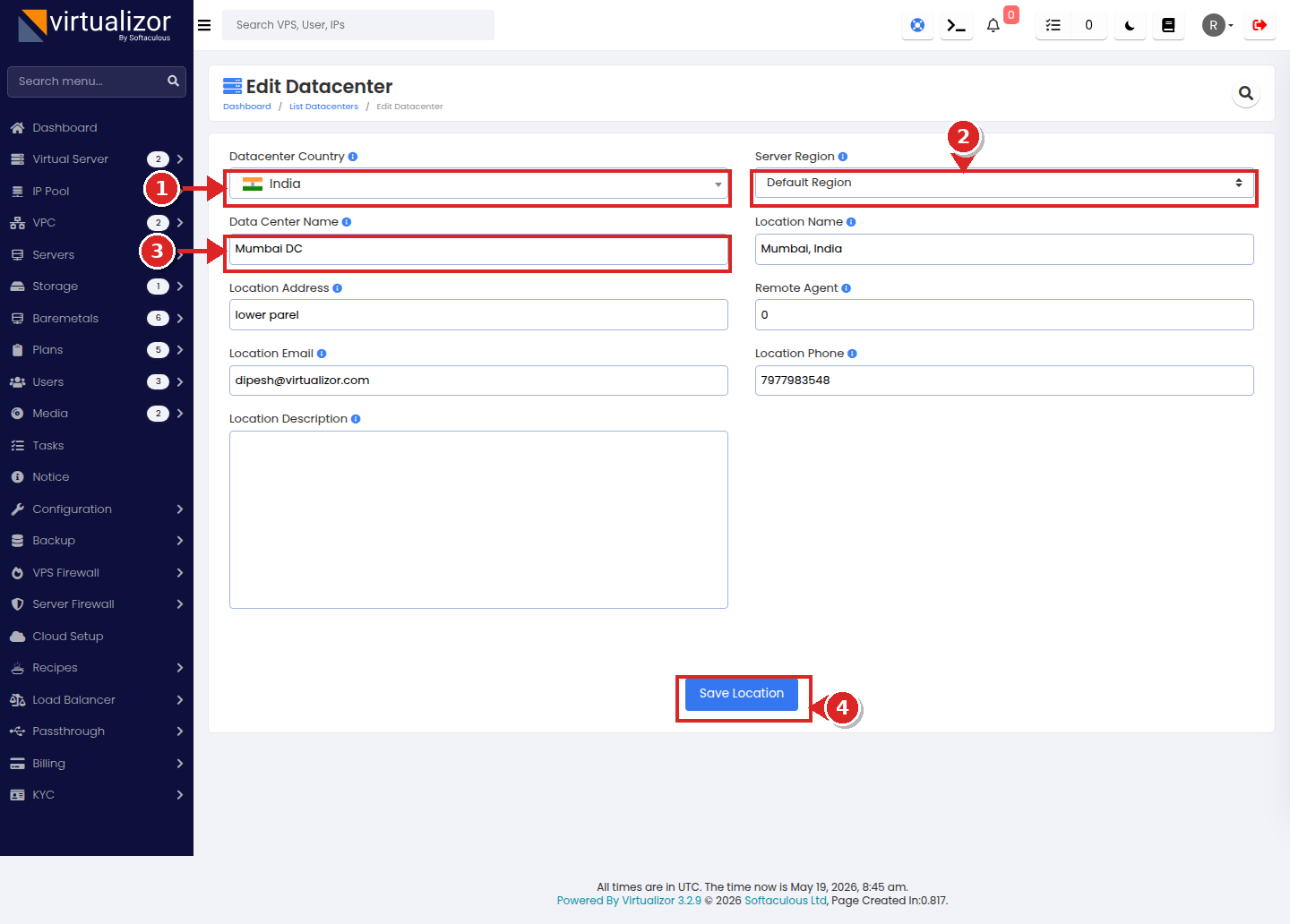
- Country - pre-selected with flag. Changing it updates the list flag immediately.
- Server Region - pre-selected from server group id. Switching it can change which bare-metal plans are offered for servers in this DC.
- Required text fields - identical to Add. Pre-populated from the existing record.
- Save Location - commits the change and redirects back to the list.